
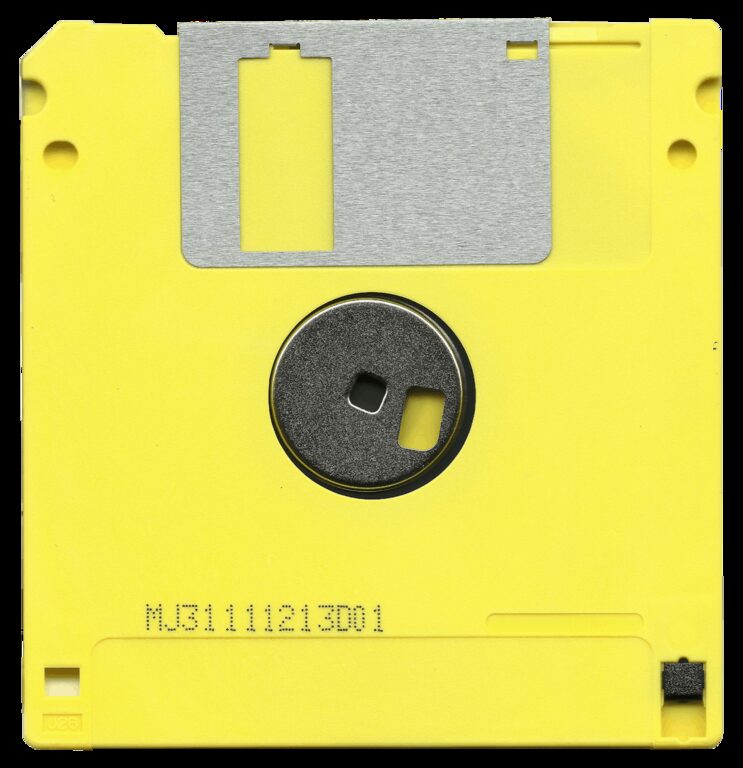
Backing up your photos and files is one of the smartest things you can do to protect your important memories and information. Whether it’s family photos, work documents, or personal projects, losing these files due to accidental deletion, hardware failure, or other issues can be stressful and sometimes irreversible. The good news is that backing up your data doesn’t have to be complicated. This guide covers simple methods to help you secure your digital life.
Why Backing Up Your Photos and Files Matters
Data loss can happen unexpectedly. Hard drives can crash, devices can be lost or stolen, and even software glitches can erase files. By regularly backing up your photos and files, you create copies that keep your data safe and allow you to restore it if needed.
Some key benefits include:
– Peace of mind: Knowing your files are safe even if the original device fails.
– Protection from accidents: Recover files deleted by mistake.
– Easy access: Retrieve files from different devices or locations.
– Security: Guard against ransomware or malware attacks that could encrypt or delete files.
Common Backup Methods
There are several ways to back up your photos and files. You can use one method or combine multiple for extra security.
1. External Hard Drives
An external hard drive is a physical device that connects to your computer via USB or other ports. It offers a straightforward way to store copies of your files.
Pros:
– Large storage capacity.
– Fast transfer speeds.
– One-time purchase; no subscription required.
Cons:
– Prone to physical damage or loss.
– Needs to be updated regularly.
Tips:
– Use a dedicated backup software or built-in tools like Windows File History or macOS Time Machine.
– Store the hard drive in a safe, dry place.
– Back up regularly, such as weekly or monthly.
2. Cloud Storage Services
Cloud storage saves your files online, allowing you to access them from any device with internet access.
Popular options include Google Drive, Dropbox, Microsoft OneDrive, and Apple iCloud.
Pros:
– Accessible anywhere with internet.
– Automatic syncing and backup.
– Easy to share files with others.
Cons:
– May involve monthly fees for larger storage.
– Dependent on internet connection.
– Privacy concerns with some providers.
Tips:
– Choose a reputable provider with strong security.
– Use two-factor authentication for extra account protection.
– Regularly check your backups to ensure files are syncing properly.
3. USB Flash Drives
USB flash drives are portable and easy to use for backing up small volumes of files.
Pros:
– Lightweight and easy to carry.
– No internet required.
– Inexpensive for basic storage.
Cons:
– Limited storage capacity compared to hard drives and cloud.
– More susceptible to loss or damage.
Tips:
– Use as a temporary or supplementary backup.
– Label drives clearly to avoid confusion.
– Keep in a secure place.
4. Network Attached Storage (NAS)
NAS devices are connected to your home or office network and can store backups from multiple devices.
Pros:
– Centralized storage for many devices.
– Can be configured for automatic backups.
– Often includes advanced features like data redundancy.
Cons:
– More expensive and complex to set up.
– Requires network knowledge.
Tips:
– Consider NAS if you have multiple devices or a home office.
– Keep the NAS device in a safe location.
– Set up scheduled backups to automate the process.
Best Practices for Backing Up Your Photos and Files
Regular Backup Schedule
Set a schedule that fits how often your files change. For daily photo uploads or work documents, daily or weekly backups are ideal. For less frequent changes, monthly may suffice.
Keep Multiple Copies
Follow the 3-2-1 rule for backups:
– Make 3 copies of any important file.
– Store copies on 2 different types of media (e.g., external drive and cloud).
– Keep 1 copy offsite (like cloud storage or a drive at a friend’s house).
Test Your Backups
Occasionally check if your backed up files can be accessed and restored. This ensures your backup process is working correctly.
Organize Your Files
Keep your backups organized in clear folders, with dates if possible. This helps you find files easily when needed.
Secure Your Backups
Especially for cloud backups, use strong passwords and enable security features like two-factor authentication. For physical devices, consider encrypting your data.
Step-by-Step: Backing Up Photos and Files Using Google Drive
Here’s a quick example of backing up files with Google Drive:
- **Create a Google account** if you don’t have one.
- Go to **drive.google.com** and sign in.
- Click the **+ New** button and select **Folder** to create a main backup folder.
- Click **+ New** and select **File upload** or **Folder upload**.
- Select the photos and files from your computer to upload.
- Once uploaded, your files will sync to the cloud.
- Install the **Google Drive app** on your mobile or other devices to access files anywhere.
You can also set up Google Backup and Sync on your computer to automate this process.
In Conclusion
Backing up your photos and files is vital to protect your data from loss. Whether you use an external hard drive, cloud service, USB flash drive, or a combination, the key is to back up regularly and keep multiple copies in safe locations.
By following these simple tips and methods, you can keep your digital memories and important files secure for years to come. Start your backup routine today and enjoy peace of mind knowing your data is protected!